Running out of stock on your best sellers is one of the most preventable problems in ecommerce — and yet it happens constantly. Shopify's default inventory view shows you stock levels, but it doesn't proactively surface what's about to run out. You have to go looking.
The problem with Shopify's inventory page
Shopify's inventory page lists all your products. But to find low-stock items, you're manually scanning through pages of products, squinting at numbers, and hoping you don't miss anything. There's no "show me everything under 10 units" filter that's quick to use on mobile when you're between meetings.
Ask Claude instead
With Claude MCP Connector, you can ask your store a direct question:
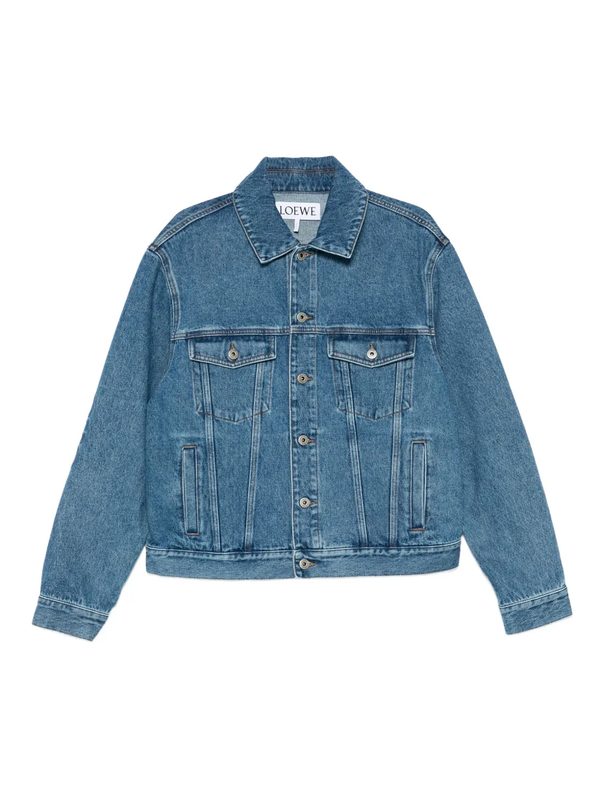
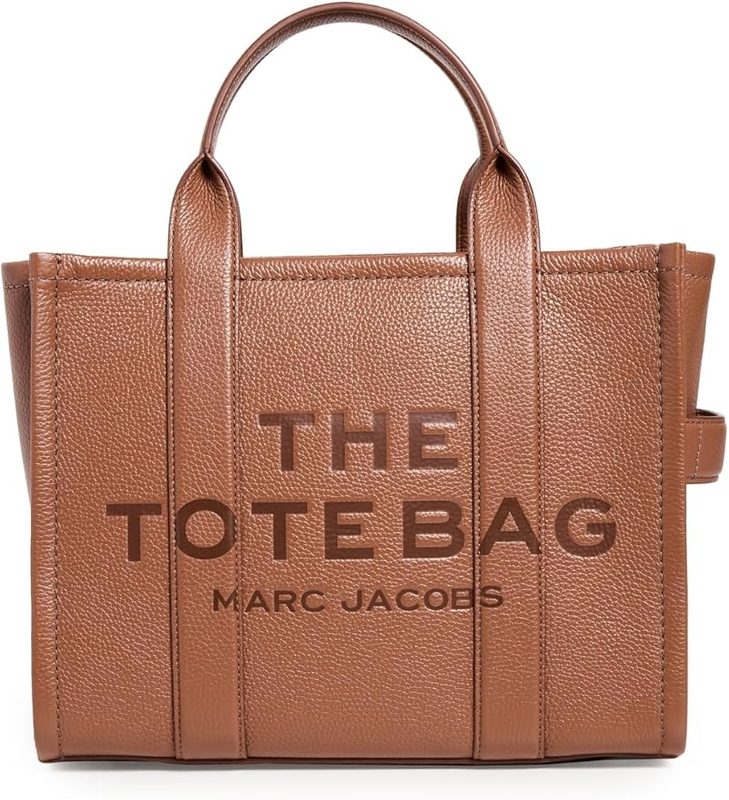
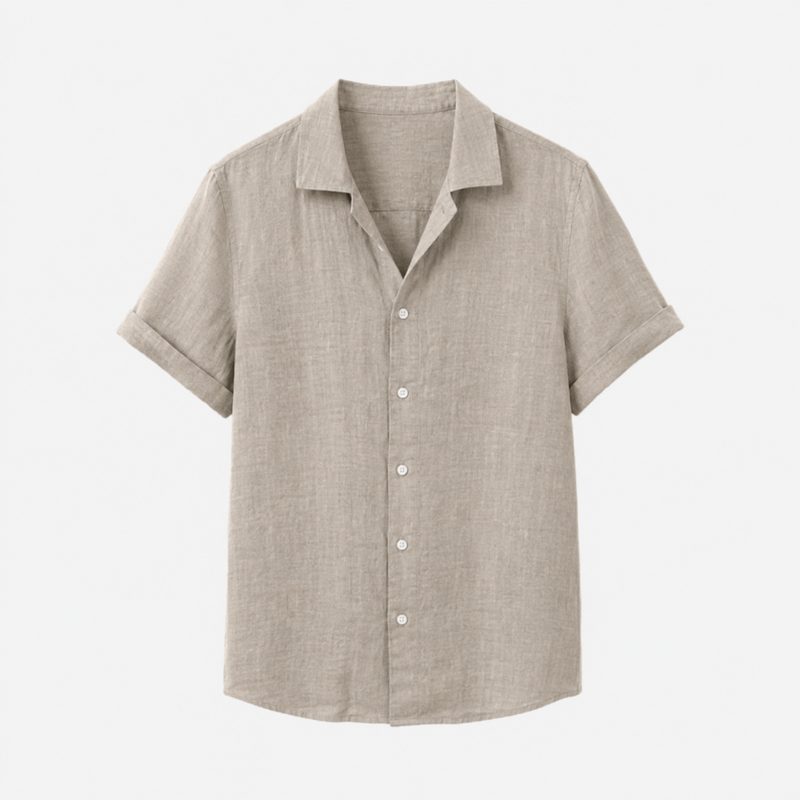
Claude pulls the live data from your store and gives you a clean list in seconds — ranked by how soon each one runs out. You can then act on it in the same breath:
More inventory questions you can ask
- "Which variants of the Air Max sneaker are sold out?"
- "Show me all products where stock dropped by more than 50% in the last 7 days"
- "Add 100 units to inventory for SKU TOTE-BRN-M at the Main Location"
- "Which location has the most stock of the Canvas Cap?"
Why this matters for revenue
Research consistently shows that stockouts cause immediate lost sales and longer-term brand damage — customers who find something out of stock often don't come back. Catching low stock early means you can reorder in time, pause ads to that product, or at least set an expectation for customers.
The 2-minute setup pays for itself the first time it prevents a stockout on your top product.